
Appearance
Edit a dimension
Five constraints carry a number: Distance, Distance to line, Angle, Radius, Diameter. Changing one re-solves the sketch and rebuilds any solid built on it.
In the docket
Find the row in the Constraints section, click into its value field, type, press Enter.
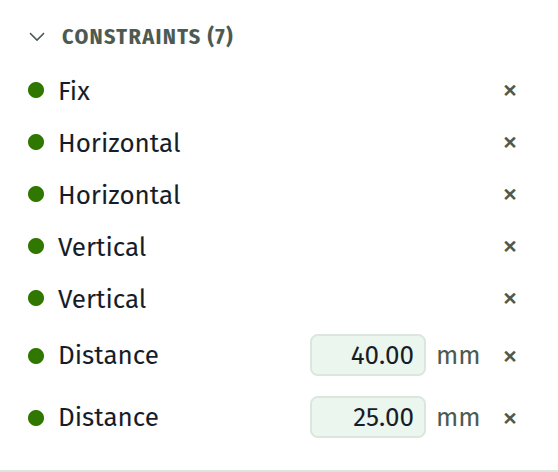
Distances show two decimals and mm. Angles show one decimal and °, converted for you.
Not sure which row is which? Click the row and the geometry it names highlights amber in the viewport.
On the canvas
Every dimension also draws an annotation next to its geometry: witness lines for a distance, a swept arc with degrees for an angle, a leader with R or ⌀ for a radius or diameter.
Click the label and a small editor opens next to it, with a live = 20.00 preview as you type. Press Enter to commit.
Drag the label to reposition it. The position is stored in millimetres relative to the geometry, so it holds station as you zoom and pan, and it is saved with the document.
Hold Shift while dragging to lock the offset to a straight bearing: the two screen axes and the four diagonals between them. Use it when you want a rank of dimensions to line up, or a radius leader to run level instead of at whatever angle your hand left it. Take the key partway through a drag and the label snaps to the lock; let it go and the label comes free again.
Grab annotations by their label. The lines themselves let clicks pass through to the geometry underneath.
Arithmetic
Every field takes it. 25.4 * 2 commits 50.80. See expressions.
Only the result is stored. Reopening the field shows 50.80 rather than what you typed.
Committing and abandoning
| Enter | Commit |
| Esc | Revert and leave |
| Click away | Commit if valid, revert if not |
A field that will not parse turns red and keeps focus on Enter, so you can fix the typo in place.
When the geometry will not follow
You typed 40 and the edge is still 30. That means another constraint is fighting yours, and the docket will show a red dot on one of them. See diagnose a sketch.
Adding one
Select the geometry and press the constraint's button. The value is seeded from what is already there, and its field is focused automatically. See apply a constraint.
Removing one
Press the × on its docket row. The annotation goes with it, along with wherever you had dragged it.
Deleting a dimension gives the sketch freedom back, so the degrees-of-freedom count rises.