
Appearance
Move a body
A body can be pushed off where its features built it. The arrows in the model view are one way to do it; the numbers in the Joints section are the other, and they are the same move.
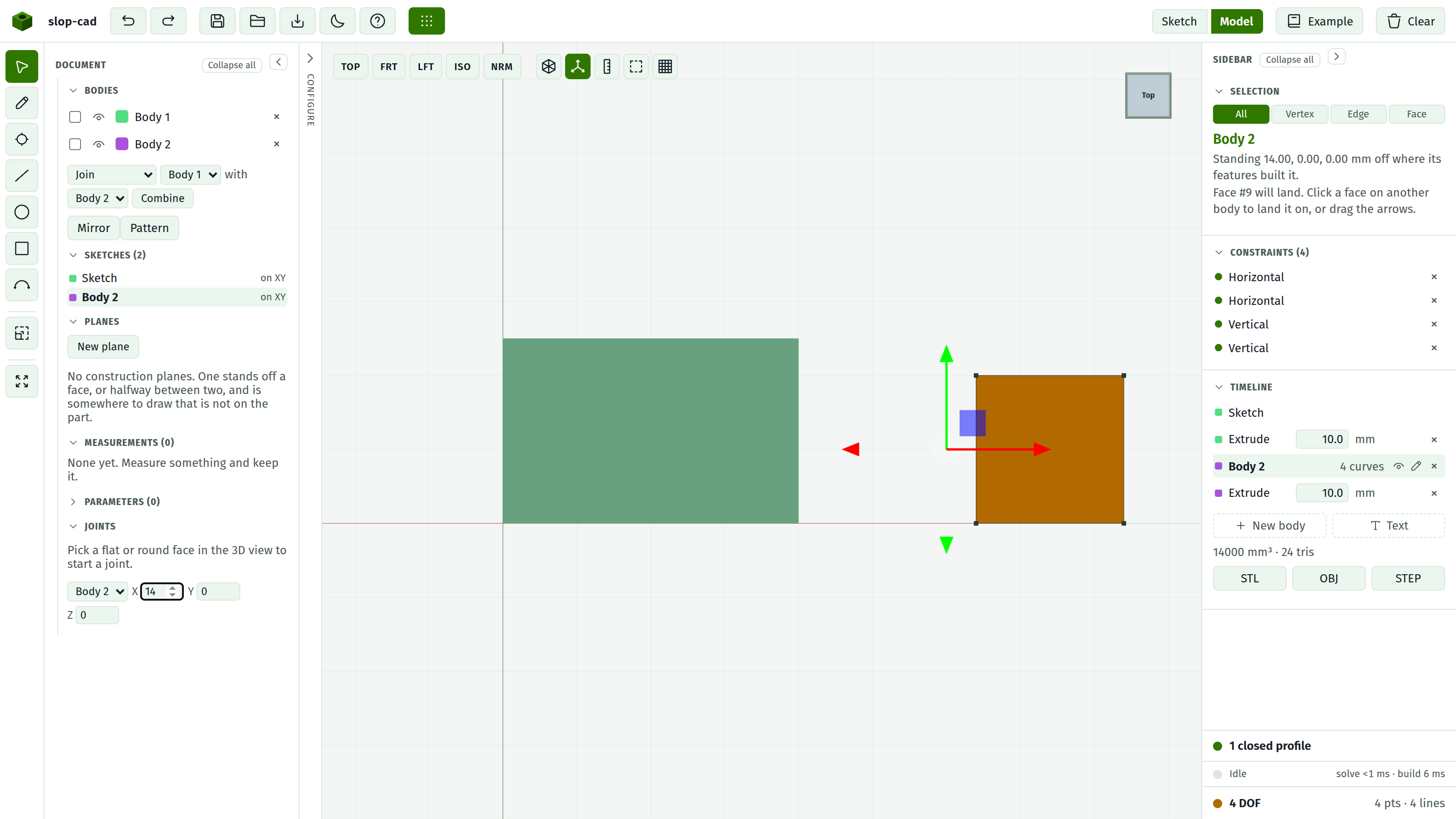
With the arrows
- Switch to Model.
- Press the axes button in the view controls, or G.
- Click any face of the body you want to move. The arrows appear at its centre.
- Drag an arrow to slide along that axis, or a corner square to slide in that plane.
Esc drops the tool. Turning grid snap on rounds the drag to whole millimetres; with it off the drag is free.
The Selection section says which body it has hold of and where that body stands. Nothing happening on a click is always answered there: a body a joint holds says so rather than silently refusing the arrows.
While a handle is held, the body follows it and nothing is rebuilt. The model is worked out once, when you let go, which keeps a drag smooth even with several bodies in the document. Anything the kernel decides catches up then too: a body jointed to this one, or a boolean between the two.
Landing a face on another face
Sliding a part until it sits flush by eye is a guess. Say it instead:
- Click the face of the body you want to land. The panel says it will land.
- Click the face to land it on, on another body.
- Press Land face #… flush on #….
The body slides square to the target face until the two planes are one, and the panel says how far it travelled. Nothing else about the body changes.
Two faces that are not parallel cannot be made flush by sliding, so that is refused with the reason: turning one body to face another is what a joint does.
With the numbers
The Joints section carries a body picker and X, Y and Z fields. Typing into them moves the same body the same way, and the arrows follow. The two controls are one selection: pick a body in either and the other agrees.
Use the fields when you know the number and the arrows when you are placing something by eye.
What a move is
A translation, and nothing else. There is no rotate handle because a body's move is stored as a translation: turning one body against another is what a joint does, and it turns about a face's own axis rather than about an arbitrary one.
The move is remembered in the document, so it survives saving and reopening.
A jointed body has no move of its own
If a joint holds a body, that joint decides where it goes. Such a body gets no arrows and its number fields are greyed, and the panel says so.
Move the body that holds it instead, and everything jointed to it comes along. Or remove the joint, which leaves the body where its features built it.
What a move does not change
The body's own geometry. The sketches under it stay where they were drawn, its dimensions mean what they always meant, and the timeline is untouched: a move is where the body stands, not what it is.
A sketch on a moved body is drawn on the body where it stands, so the two stay together on screen. The numbers underneath are still in the body's own frame, which is the frame its features are built in: a sketch does not move because the body it sits on was pushed somewhere.
See also
- Hold two bodies together for a move that is decided rather than typed
- Bodies for the list, the names and the colours
- Model view for the rest of the view controls