
Appearance
Draw with each tool
Press the tool's key, or click its button in the tool strip. Switching tools abandons anything half-drawn.
A closed loop, reliably
Use the Pencil D. It chains segments that share their endpoints, so the loop closes instead of looking closed.
- Click to start.
- Click for each corner.
- Click the first point again to close. A green ring appears when you are close enough to snap.
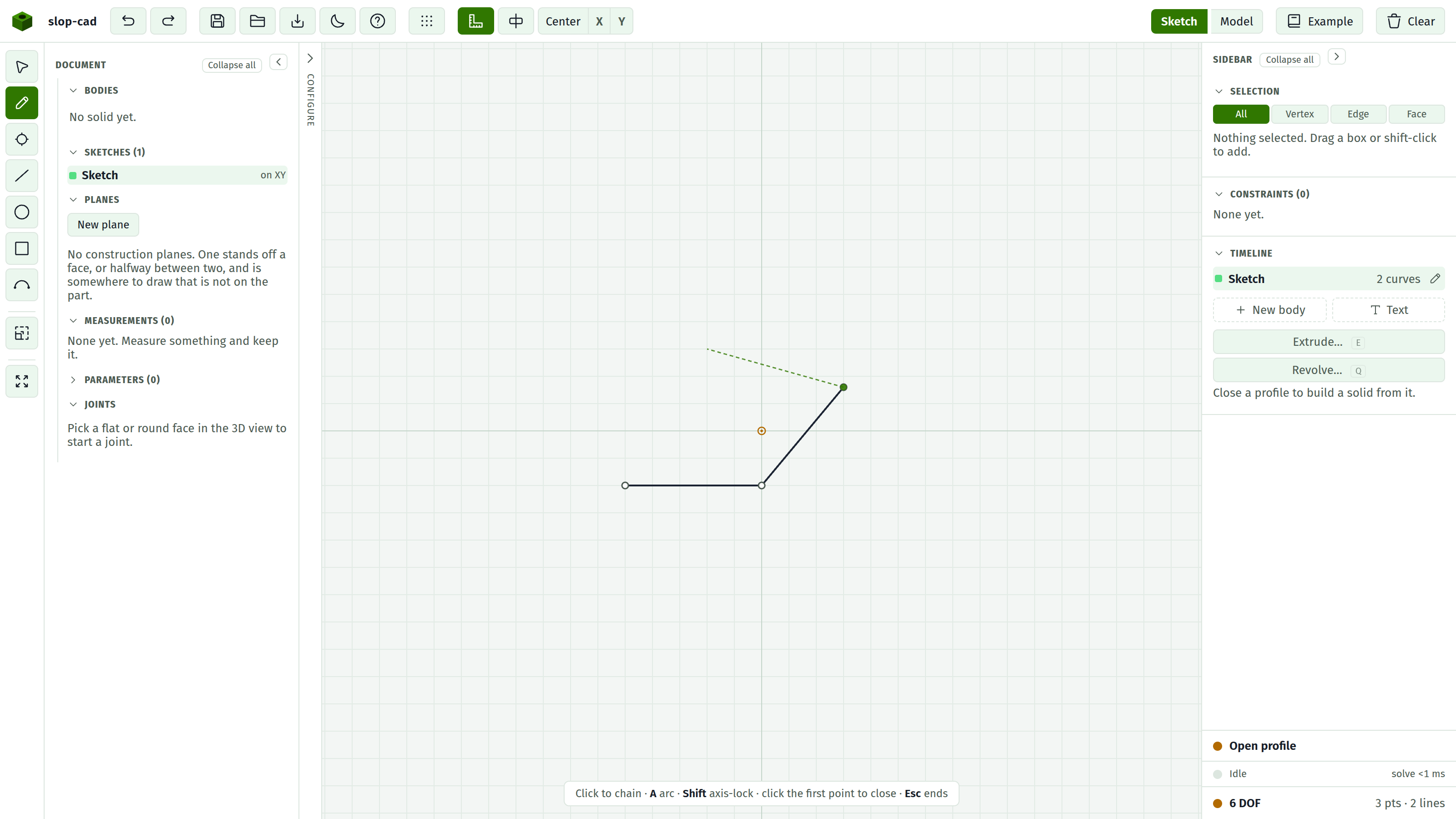
Check the profile row: it should say 1 closed profile. If it says Open profile, the loop did not close.
Along the way:
- Hold Shift to lock the pending segment to an axis. This also adds a Horizontal or Vertical constraint.
- Press A to make the next segment a tangent arc. It is built tangent to the previous segment and constrained that way. The flag resets after each segment.
- Esc or Enter ends the chain without closing it.
A rectangle
Press R and click two opposite corners.
You get a closed loop plus two Horizontal and two Vertical constraints, so it stays a box when the solver runs. One undo step. The first corner snaps to an existing point.
A circle
Press C. Click the centre, then click to set the radius.
Dimension it afterwards with Radius or Diameter rather than trying to click it exactly.
An arc
Press A. Three clicks: centre, start, end.
The second click fixes the radius. The third only decides how far it sweeps, since its point is projected back onto that radius. If the third click lands on an existing point, that point is reused as the arc's end.
For an arc that continues smoothly from a line, use the Pencil's A toggle instead: that one arrives already tangent.
A single line
Press L. Click the start, click the end. Hold Shift on the second click to snap to an axis and add the matching constraint.
Consecutive Lines do not share endpoints unless the snap catches them. For a loop, use the Pencil.
A single point
Press P and click. Useful as a reference to constrain against, for instance a hole centre placed relative to two edges.
Backing out
| Esc | Abandon what is half-drawn |
| Switch tools | Same effect, silently |
| Ctrl+Z | Undo what has already landed |
Each pencil segment is its own undo step. A rectangle is one step however many entities it created.
See also
- Tools, for the exhaustive version
- Snapping and the grid
- Profiles, for why closing matters