
Appearance
Emboss and engrave text
Text is a sketch you do not draw. You type a string and the letter outlines arrive as closed profiles; from there it is an ordinary extrude, so Emboss raises the letters off the face and Engrave sinks them into it.
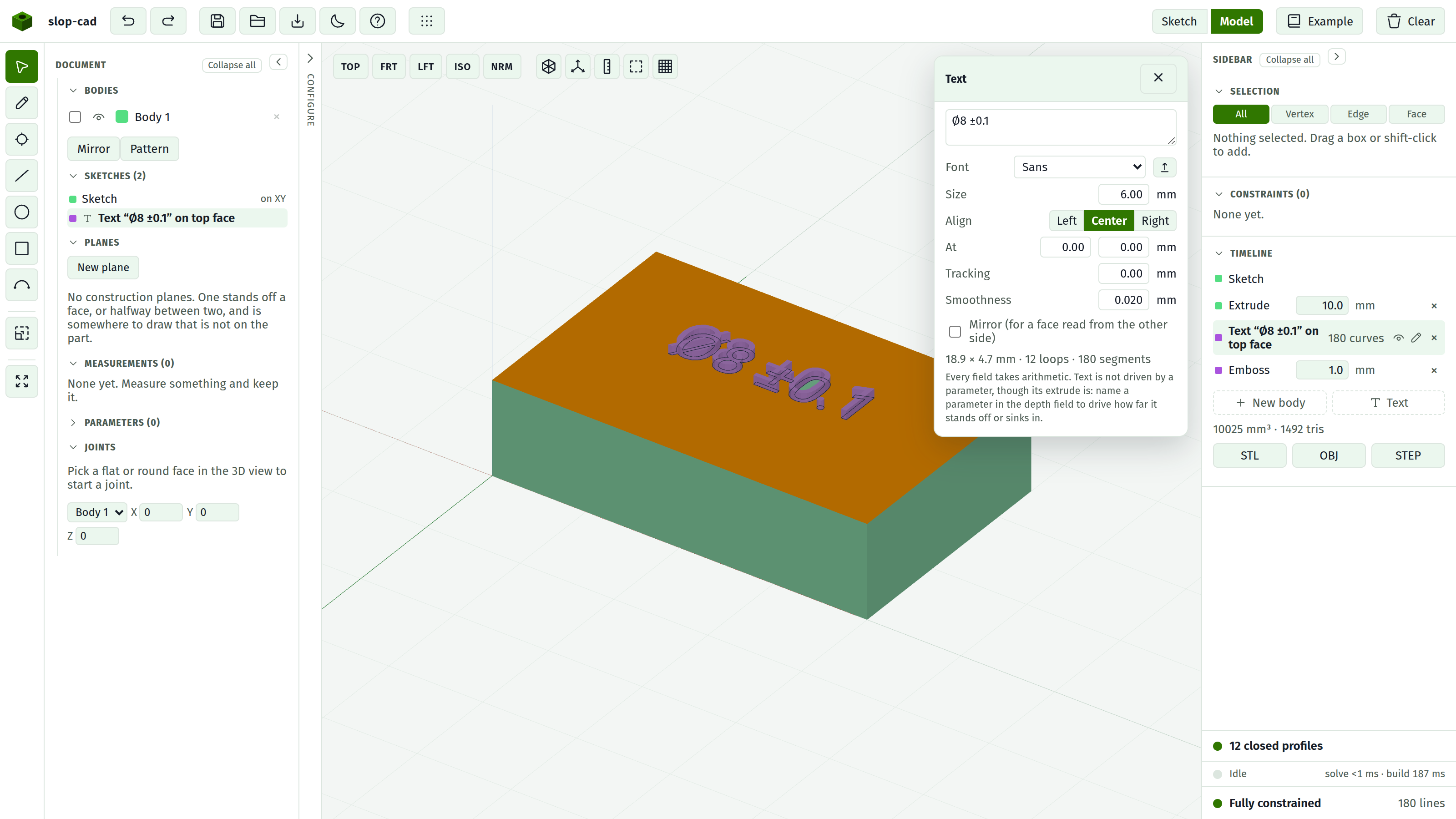
On a face
- Switch to Model.
- Click the flat face you want the text on.
- Press Text on face in the Selection section. The text dialog opens over the sketch.
- Type the string into the Text section that appears.
- Set a Depth, then press Emboss ▸ or Engrave ▸.
The text lands centred on the face you picked, at a size that fits it: the default is ten millimetres and it comes down from there if the face is smaller, so what arrives is something you can build rather than something hanging off the edge.
Moving it about
Drag it. Press anywhere on the letters, in either view, and the whole block follows the cursor across its plane; grid snap rounds it to the grid in the sketch view and to the millimetre in the model view. The At fields say the same thing in numbers, and Align decides which end of the line those numbers fix.
Dragging the letters themselves does nothing else: every vertex of a glyph is locked, so there is no outline to pull out of shape.
It has to land on the face
Text is cut into material or raised from it, so it has to be on the face it is set on. Push part of it off the edge and the Text section says so, the timeline row says the feature was left out of the solid, and the rest of the model builds without it. Move it back or make it smaller and it returns.
Nothing is lost while it is out: the document still carries the feature, and the only thing missing is the letters.
Standing on its own
Press Text at the bottom of the Timeline instead, and the string starts a body of its own on the world plane. Extrude it and you have letters as a part: a keycap legend, a sign, a stencil.
The fields
| Field | What it does |
|---|---|
| Text | The string. Enter starts another line |
| Font | One of three bundled faces, or one you load |
| Size | Em size in millimetres. A capital letter comes out around 0.7 of it |
| Align | Which end of the line the At position fixes |
| At | Where the first baseline starts, in sketch millimetres |
| Tracking | Extra space between letters; negative tightens |
| Line pitch | Baseline to baseline, as a multiple of the size. Appears once the text has a second line |
| Smoothness | How far the flattened outline may stray from the true curve |
| Mirror | Flips the text, for a face that will be read from the other side |
Every one of them takes arithmetic, and every one re-cuts the outlines as it commits.
Depth is the extrude, not a text field
There is no depth in the Text section on purpose. A text sketch is extruded like any other, so the Timeline's own depth field is what sets it, and that field can be driven by a parameter. Name one and the engraving depth follows the plate thickness.
The text itself is not driven by parameters. Its size and position are the numbers you type.
Smoothness, and why it costs
Letter shapes are curves, and this modeller builds prisms from lines and arcs, so the curves are broken into straight segments. Smoothness is how much error you will accept, in millimetres, and every segment it adds becomes a wall of the solid.
The default of 0.02 mm is invisible at any size you would engrave and cheap enough that a whole sentence rebuilds in well under a second. Tightening it to 0.005 mm quadruples the segments for a difference you will never see or measure. Loosen it to 0.1 mm and the letters start to look faceted.
Engraving depth
An engraved letter is a pocket, so its depth has to be less than the material under it. A cut that reaches the far side of a plate cuts the letter clean out, and a letter with a counter (an O, an 8) will drop its middle out as a loose island. The build refuses that rather than producing it, and says so.
What is missing from a font
If a face has no glyph for a character, the Text section says which characters and leaves them out. Nothing silently becomes a blank.
The three bundled faces carry printable ASCII plus the symbols a drawing uses: degree, diameter, plus-minus, micro, ohm, prime and double prime, the halves and quarters. For anything else, load a font.
Loading a font
Press the upload button beside the Font picker and pick a .ttf file. It is available for the rest of the session and every text feature can use it.
TrueType outlines only. An OpenType file with PostScript outlines is refused by name rather than half-drawn.
What is saved
The letter outlines are saved into the document as geometry, so a part opens, rebuilds, measures and exports on a machine that has never had the font. The string is saved beside them, so it stays editable.
Open a document whose font you have not loaded and everything about the part still works. The Font picker shows the name it was set in, marked not loaded, and editing the string asks you to load that file first.
What text cannot do
- It cannot be dragged in the canvas. Every vertex is locked, which is why a sketch full of letters is fully constrained with nothing in the docket. Move it with the At fields.
- Nothing else can be drawn into a text sketch. Editing the string re-cuts the whole sketch, and anything added by hand would go with it. Put hand-drawn geometry in its own sketch on the same face.
- Editing the string is not undoable, in the same way a parameter edit is not.
- A blend on the side of a letter goes stale when the string is edited, because the letters that carried it are gone. The Timeline says so rather than moving it onto some other letter.
See also
- Text for the panel field by field
- Extrude for depth, add and cut
- Sketch on a face for the same thing drawn by hand