
Appearance
Sketch in the 3D view
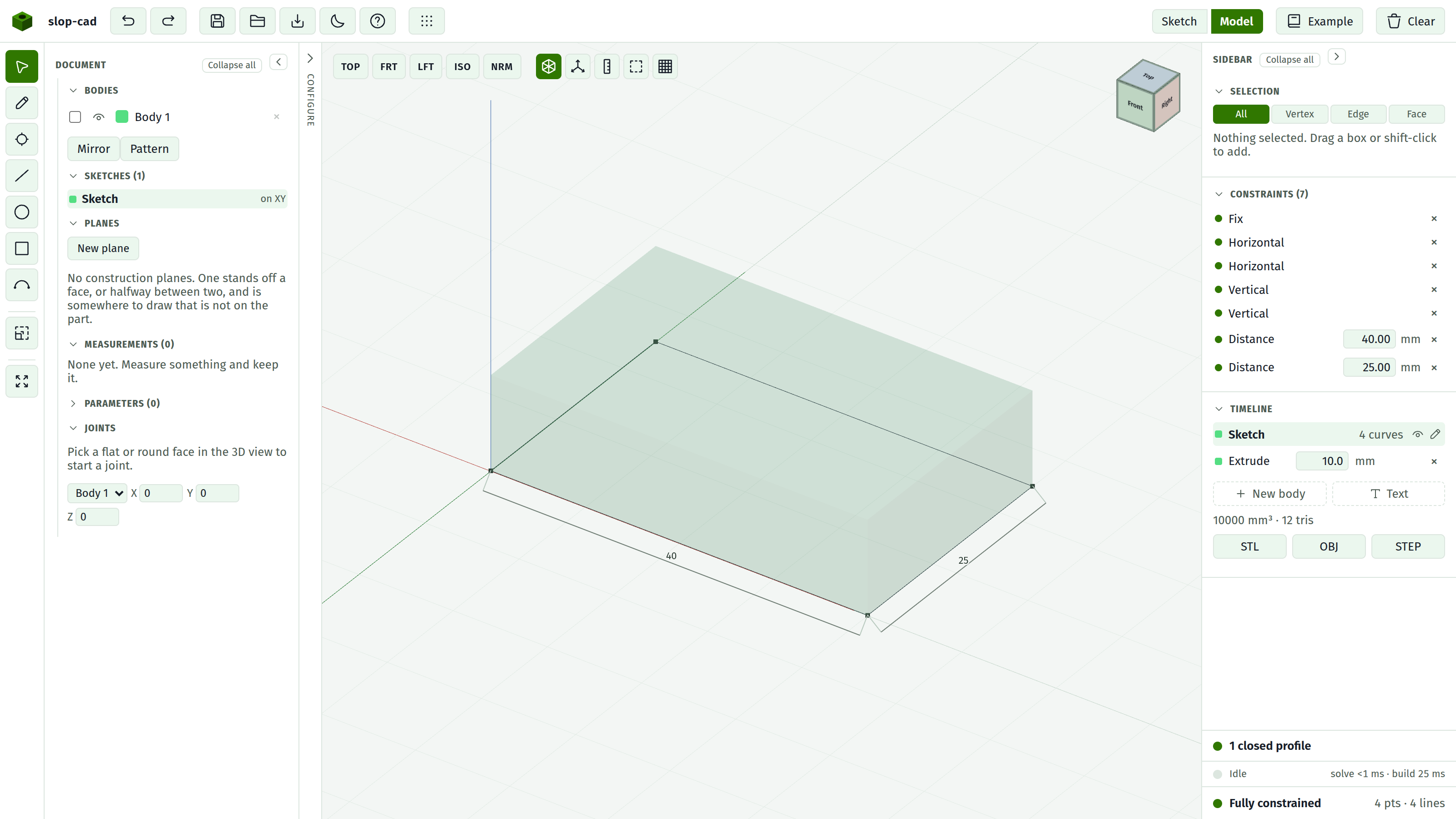
You can draw without leaving the model view. Everything lands on the active sketch's plane.
Drawing
Press Sketch on face and you arrive here already, with the Pencil armed.
Every drawing tool works here, not only the Pencil: Point, Line, Circle, Rectangle and Arc all take their clicks on the plane, with the same rubber band following the cursor as in 2D. Pick one from the tool strip or by its key.
Click to chain pencil segments exactly as in 2D. Shift still axis-locks, A still arms a tangent arc, clicking the first point still closes the loop.
What you draw is painted over the solid rather than into it. A sketch on a face lies in that face, and anything drawn exactly in a surface is a coin toss to a depth test, so the overlay is put in front. That is also what you want from it: the sketch belongs to the plane you are working on.
The snap tolerance in 3D scales with the size of the model rather than being a fixed number of pixels, so it behaves sensibly whether you are zoomed onto a small boss or looking at the whole part.
Moving the sketch
With Select active, press a sketch point on the plane and drag. Orbiting is suspended for that press, so the drag moves the point rather than the camera. A press on a line, a circle or an arc away from its points takes the whole curve instead, and it travels unchanged. It behaves the same way as in the sketch view, because it is the same gesture arriving at the same solve.
A tap is different: it picks the face under the point, not the point. A point usually sits in the middle of whatever it swept, so a circle's centre sits in the middle of its own cap, and letting the point take every tap would put that face out of reach. To select the point instead, switch the selection mode to Vertex first. Dragging needs no mode change, since a drag can only have meant the geometry.
Selected points draw larger and amber; unselected ones are small and grey.
Dimensions are not drawn on the plane in 3D. For precise work, the 2D view is the better place: there is a grid to snap to and a dimension to type into.
Seeing through the solid
X-ray in the view buttons makes the solid translucent, so a sketch on a far face stays visible.
Reference geometry from the parent
When the active sketch sits on a face, two extra buttons appear at the top right of the sketch view.
X-ray here is a different thing from the 3D one. It underlays the parent sketch, projected onto the current plane, as a faint dashed drawing. It is a visual guide and nothing more: you cannot select it or constrain to it. The setting is remembered.
Project materialises the parent's geometry as locked reference geometry on your plane, with stable identities. That geometry can be selected and constrained against, which is how you place a boss relative to the edges of the plate underneath rather than by eye.
Unproject removes it again.
The projection is re-derived from the parent's current shape every time you activate the child sketch, so it tracks edits to the parent.
Circles and arcs come across too, as dashed reference curves, so you can constrain to the edge of a hole in the parent and not only to its centre. A projected circle keeps tracking its parent's radius.
WARNING
Curves only project onto a parallel plane. Seen at an angle a circle is an ellipse, which this sketcher has no way to draw, so those curves are left out. When that happens the sketch view says how many and why; the points and lines still come across.
Reference geometry is locked. You can constrain to it and you cannot move it, and it is excluded from profiles and from the Fit calculation.
When to use which
| You want | Use |
|---|---|
| To see roughly where the parent's edges are | X-ray in the sketch view |
| To see through the solid while drawing in 3D | X-ray in the model view |
| To dimension against the parent's edges or a hole in it | Project |
| To dimension against the SOLID: an edge, a corner, a hole, or another body | Trace |
Project works off the parent SKETCH. To take a reference off the built solid instead, which is the only way to reach an imported body or a body a sketch has no parent in, see tracing the model.