
Appearance
Tools

Switching tools abandons anything half-drawn. A line waiting for its second click, a pencil chain in progress, an arc waiting for its third click: all discarded, silently.
Every placement click snaps to an existing point within 12 screen pixels of the cursor, which is how geometry ends up sharing a corner instead of having two ends in the same place. With grid snap on, unsnapped placements round to the visible grid as well.
Select V
The default. Picks, drags, and boxes.
| Gesture | Result |
|---|---|
| Click geometry | Select it. Clicking the only selected item again clears the selection |
| Shift + click | Add it, or remove it if already selected |
| Click empty space | Clear the selection |
| Drag on empty space | Drag box. Only geometry fully enclosed is caught |
| Shift + drag | Add the boxed geometry to the existing selection |
| Drag a point | Move it, re-solving continuously so constraints hold |
| Drag a circle | Change its radius |
| Drag a line or arc | Move the whole thing, unchanged |
| Drag part of the selection | Move everything selected together |
| Right click, or press for 0.5 s | Context menu |
Each drag is one undo step, however far you moved. What is grabbed lands where the cursor is; everything else stays put unless a constraint gives it no choice. See Move what you drew.
In Face select mode, clicking empty space inside a closed profile selects every entity bounding that profile, which is the fastest way to grab a whole loop.
Pencil D
Chained segments that share their endpoints, so the loop closes instead of being four separate lines that happen to touch.
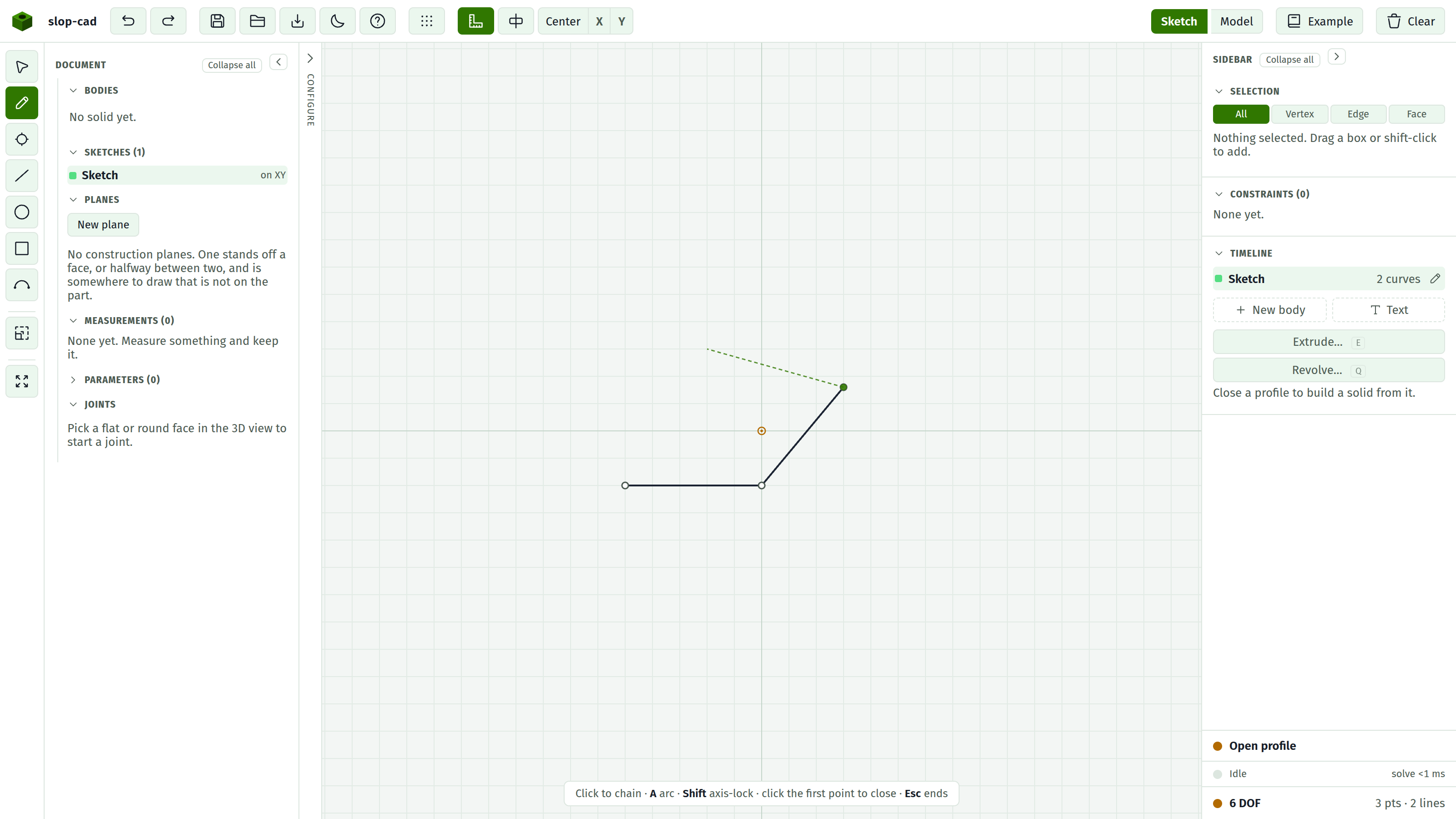
- Click to start.
- Click again for each new segment. Each one is its own undo step.
- Press A mid-chain to make the next segment a tangent arc. It is constructed tangent to the previous segment and gets a tangent constraint automatically. The flag resets to line after that segment lands, so press it again for another arc.
- Hold Shift to lock the pending straight segment to an axis. That also adds a Horizontal or Vertical constraint. Ignored while an arc is armed.
- Click the chain's first point to close the loop and finish. A green ring appears around it when you are close enough to snap.
- Or click the current endpoint again, or press Esc or Enter, to stop without closing.
A hint strip along the bottom of the canvas states which of these apply at any moment.
Every drawing tool on this page works in the 3D view too, onto the active sketch plane. Pick one and click on the plane; the rubber band follows the cursor there the same way it does in 2D. See sketching in 3D.
Point P
One click drops one point. Useful as a construction reference to constrain against.
Line L
Click for the start, click for the end. A rubber band previews it.
Hold Shift on the second click to project onto the nearest axis and add a Horizontal or Vertical constraint. A zero-length line is silently ignored.
Unlike the Pencil, consecutive lines do not share endpoints unless the snap catches them. For a closed loop, reach for the Pencil.
Circle C
Click for the centre, click to set the radius. The centre snaps to an existing point. A radius of effectively zero is ignored.
Rectangle R
Two clicks on opposite corners.
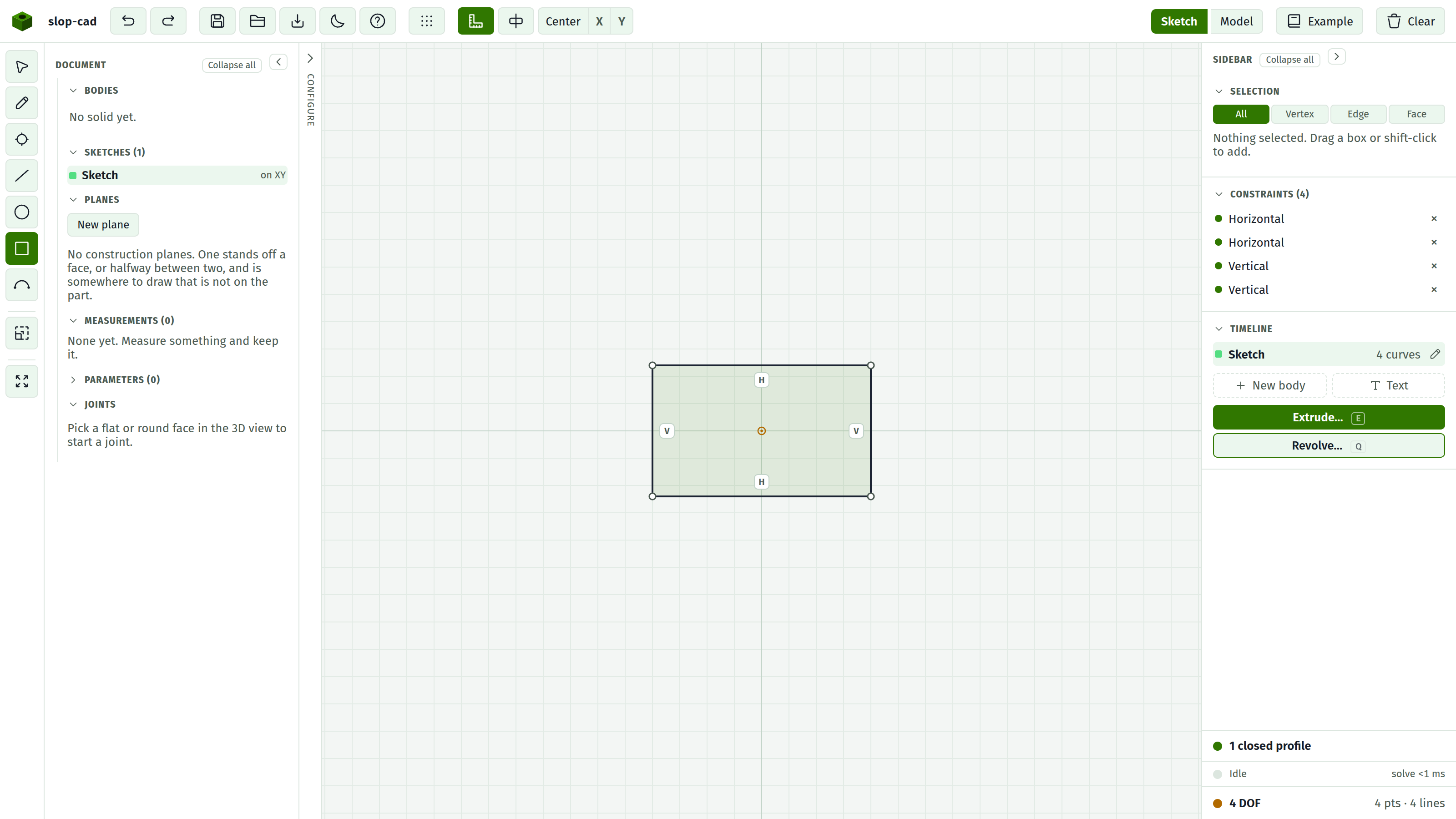
You get four points and four lines as a closed loop, plus two Horizontal and two Vertical constraints so a later solve keeps it square. The first corner snaps to an existing point. A degenerate box with no width or no height is refused. The whole thing is one undo step.
Arc A
Three clicks: centre, start, end.
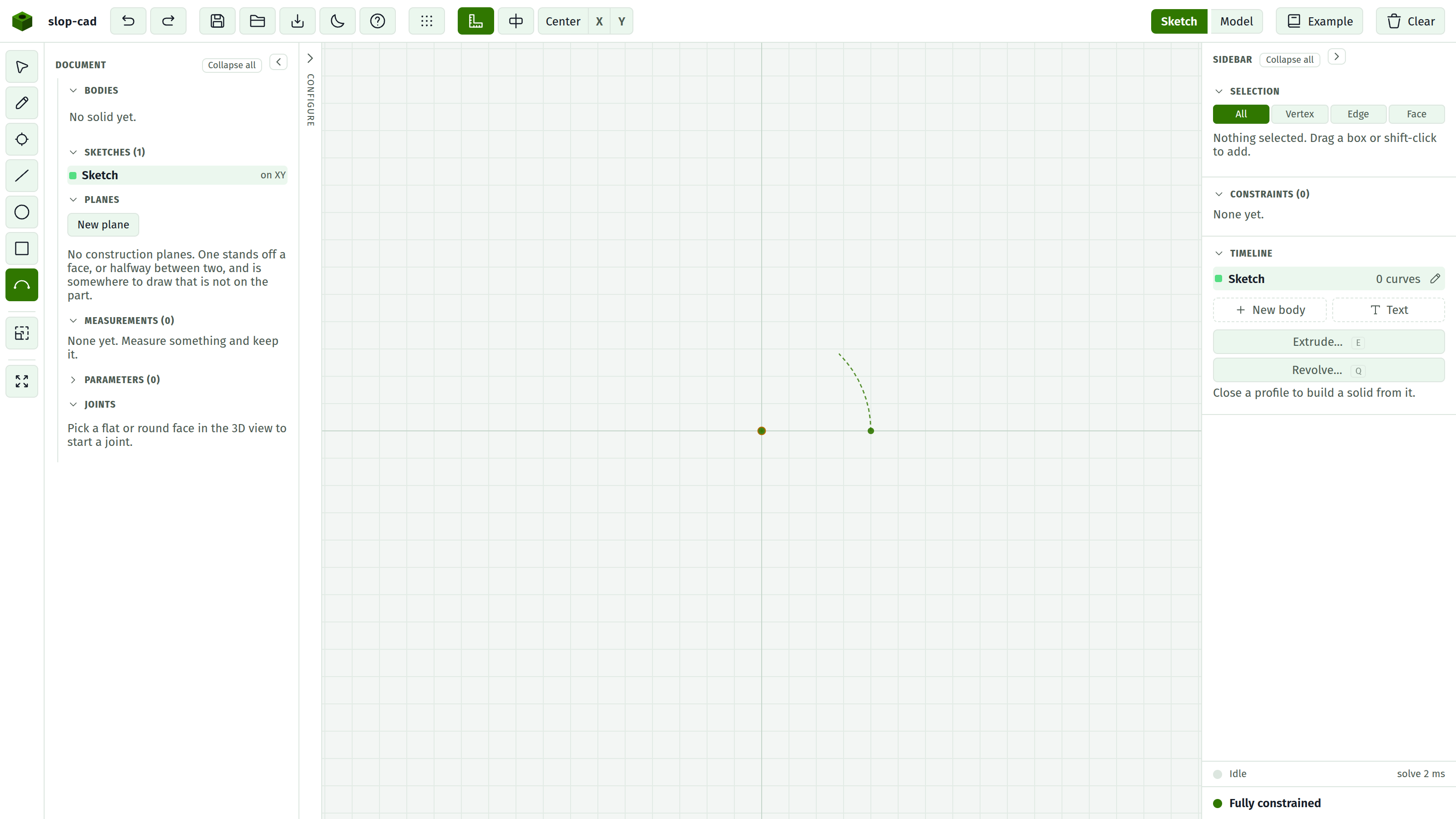
The second click fixes the radius. The third only sets how far the arc sweeps, since its point is projected back onto that radius. Direction follows which way you swept. If the third click lands on an existing point, that point is reused as the arc's end.
Mid-pencil-chain, A arms a tangent arc instead of switching to this tool.
Offset O
Not a drawing tool: a command. It offsets a closed region of the sketch and draws the result beside it, then disarms. Nothing stays selected and no tool changes.
The button is disabled until the sketch has a closed region. See offset.
New plane W
Not a drawing tool, and not on the strip: it lives in the Planes group of the document panel and opens a dialog over the model view. It builds somewhere to draw that is not on the part, either a typed distance off a face or halfway between two of them. See construction planes.
Recenter F
Not a drawing tool. It frames the drawn geometry in the viewport with a margin, ignoring reference geometry. On an empty sketch it resets to the default zoom, centred.
This moves the viewport. To move the geometry onto the sketch origin, use the Center / X / Y buttons in the top bar. See snapping, the grid and the view.
Cursors
The Point, Line, Circle, Arc and Pencil tools show a crosshair. Select shows an arrow. The Rectangle tool keeps the default arrow, which is a small inconsistency rather than a signal that it is inactive.