
Appearance
Constraint docket
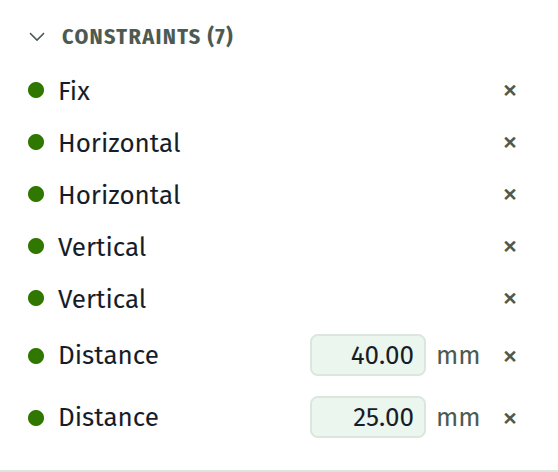
The second section of the sidebar, headed Constraints (N), above the document tree because it belongs to the sketch you are in rather than to the document. One row per constraint in the sketch you are currently editing.
An empty sketch reads None yet.
A row
Left to right:
A state dot. Eight pixels, one of four colours. Hovering names the state.
The name. The constraint kind, with underscores turned into spaces, so distance_to_line reads as "Distance to line". Note that both Point-on-line and Point-on show as Point on, since they are the same underlying constraint.
A value field, on dimensions only, followed by its unit. Distances show two decimals and mm. Angles show one decimal and °, converted for you.
A delete button, the ×. It removes the constraint and forgets where you had dragged its canvas annotation.
The four states
| State | What it means | What to do | |
|---|---|---|---|
| Solved | Satisfied, and removing it would free the sketch | Nothing | |
| Redundant | Satisfied, but something else already forces it | Usually harmless. Delete it if you want the docket honest | |
| Conflicting | It cannot hold alongside the others | Delete this one or the one that fights it | |
| Unsolved | The solver did not converge | Look for a conflict, or geometry that has collapsed |
A redundant constraint costs nothing except clarity. A conflicting one means the sketch cannot be solved as stated, and the geometry you see is the solver's closest attempt. See diagnosing a sketch.
Editing a value
Click into the field, type, press Enter. The sketch re-solves, and if a solid depends on it, the solid rebuilds.
The field accepts arithmetic, so 40 / 3 and 25.4 * 2 are both fine. A value it cannot parse turns the field red and keeps your cursor in it.
Applying a new dimension focuses its field automatically, so you can add and type in one motion.
The same value can also be edited by clicking its annotation on the canvas, which opens a small editor next to it.
Highlighting, every way
Click a row and the geometry it names lights up amber in the viewport. This is the fastest way to find out what a constraint is attached to.
Select geometry and every row that mentions it is tinted. This is the fastest way to find out why a point will not move.
Click a badge on the drawing and its row is outlined here, and the list scrolls to it. This is the way round you want when you can see the thing you are unhappy about but not which of eleven rows is responsible for it.
The whole section also pulses blue for a moment and scrolls into view when you click the degrees-of-freedom row in the status foot.
Scope
The docket shows the constraints of the active sketch only. If your document has several sketches, switching between them in the timeline changes what is listed here.
Extrudes and blends are not constraints and never appear here. They live in the timeline.